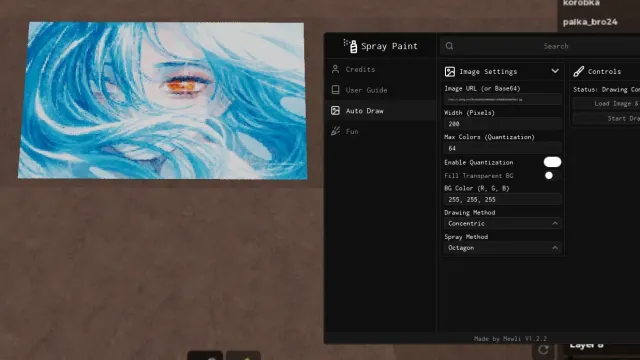
🎨 RUAJADHUB | Spray Paint — Auto DrawAutomatically draw images in Roblox by converting them into pixels, with a live preview frame and customizable drawing controls.🖼️ 1. Image SetupImage ID — Enter a Roblox Asset ID using numbers only.Use IDs from the Images tab only. Do not use IDs from the Decals tab.⚙️ 2. Quality & SizeResolution (8–256px) — Set the image resolution. Higher resolutions require more processing and drawing time.Pixel Size (1–20) — Adjust the size of each pixel. The drawing frame updates instantly without reloading the image.Estimated Drawing Size — Displays the frame dimensions, drawing position, start/end points, and warnings when the image exceeds the screen boundaries.🚀 3. Speed & StabilityManual Speed / Delay (1–30) — Adjust the drawing speed. Default: 1 (fastest).🎮 4. Controls📥 Load Image — Load the image and convert it into pixel data for drawing.👁 Show Frame — Toggle the blue preview frame (#006994) on the screen.🖥 Display Scale (100–200%) — Match this setting to your Windows Display Scale to keep the drawing position aligned with the preview frame.🎨 Start Drawing — Begin automatic drawing with a 5-second countdown to allow time to minimize the menu.🛑 Cancel / Stop — Cancel or stop the drawing process.🔄 Server Hop — Switch to a server with lower ping. Recommended before loading an image or starting to draw.⌨️ 5. Keyboard ShortcutsF6 — Press once: Pause drawing.F6 — Press again: Resume from the previous position.F6 × 2 — Press twice quickly: Cancel drawing immediately.💡 Tip: Check your Display Scale, Pixel Size, and Estimated Drawing Size before starting to ensure accurate positioning and the desired image size.